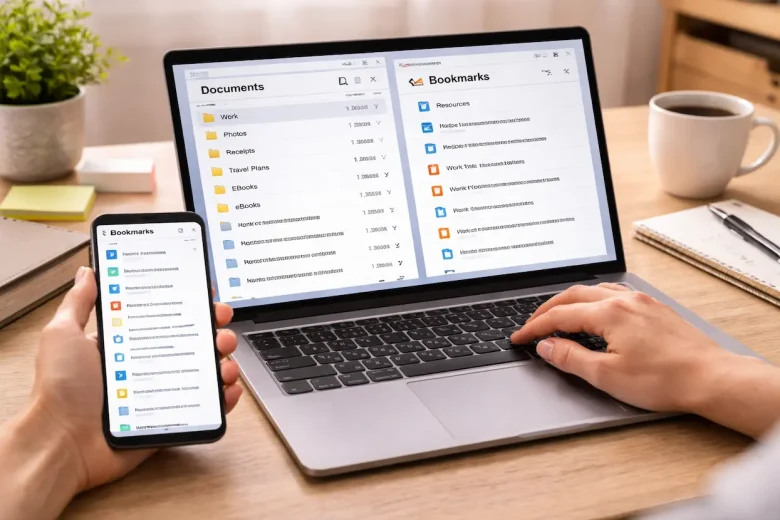
In today’s digital world, we deal with an overwhelming amount of information every day—documents, articles, videos, tutorials, and tools. At some point, almost everyone faces the same question: Should I save this file or just bookmark the link? I’ve been in situations where my downloads folder was full of random files I barely used, while my browser had dozens of bookmarks that I couldn’t remember why I saved in the first place.
Both saving files and bookmarking links are useful methods of digital organization, but they serve different purposes. Choosing the right approach can make your workflow smoother, reduce clutter, and help you find what you need quickly without wasting time.
In this guide, we’ll explore the differences between saving files and bookmarking links, when to use each method, and how to build a simple, effective digital organization system that actually works in real life.
Understanding Saving Files vs Bookmarking Links
What It Means to Save Files
Saving a file means downloading or storing a copy of content directly on your device. This could include PDFs, images, videos, spreadsheets, or documents.
When you save a file, you have offline access to it, and it remains available even if the original source is removed or the website goes down.
What It Means to Bookmark Links
Bookmarking a link involves saving the URL of a webpage in your browser or a bookmarking tool. Instead of storing the content itself, you save a reference that allows you to revisit the page later.
Bookmarking is useful for web-based content like articles, tutorials, and tools that are frequently updated or don’t need to be downloaded.
Key Differences Between Files and Bookmarks
Storage Location
Saved files are stored locally on your device or cloud storage, while bookmarks are stored in your browser or online account.
This difference affects accessibility and control. Files are independent of the internet, while bookmarks require an active connection to access the original content.
Accessibility
Files can be accessed offline, which is useful when internet access is limited. Bookmarks, on the other hand, require the original webpage to still exist and be accessible online.
Content Ownership
When you save a file, you essentially have a copy of the content. With bookmarks, you are only saving a reference, not the actual content.
If the website changes or removes the page, your bookmark may become outdated or broken.
Organization Style
Files are typically organized into folders and subfolders. Bookmarks are organized into folders within the browser or categorized using tags in some tools.
Both require intentional structuring to avoid clutter.
When Saving Files Is Better
Offline access is needed.
If you need to access content without the internet, saving files is a better option.
For example:
- Study materials
- Work documents
- Offline guides or manuals
Having a local copy ensures availability anytime.
Content Needs to Be Preserved
Some web pages may change or disappear over time. Saving a file ensures you keep the exact version of the content you need.
This is useful for:
- Research papers
- Important references
- Contracts or receipts
You Need to Edit or Use the Content
Files can be edited using software like word processors or spreadsheets. If you need to modify the content, saving it as a file is essential.
When Bookmarking Links Is Better
Content Is Frequently Updated
If the information changes regularly, bookmarking the link is more practical.
Examples include:
- News articles
- Blogs
- Online tools or dashboards
This method ensures you always access the latest version.
You Don’t Need Offline Access
If you only need to revisit the content occasionally and always have internet access, bookmarking is simpler and more efficient.
You Want to Avoid Clutter
Saving too many files can quickly fill up storage and create disorganization. Bookmarking helps reduce unnecessary file accumulation.
Step-by-Step Guide to Organizing Files Properly
1. Create a Logical Folder Structure
Organize files into clear categories such as:
- Work
- Personal
- Finance
- Study
Within each category, create subfolders for specific topics. This makes navigation easier.
2. Use Descriptive File Names
Avoid generic names like “Document1” or “File2.”
Instead, use clear and descriptive names, such as:
- “Monthly_Budget_2026.xlsx”
- “Project_Report_Final.pdf”
This helps you identify files quickly without opening them.
3. Regularly Clean Up Your Storage
Set aside time to review your files periodically.
- Delete duplicates
- Remove outdated files
- Archive rarely used items
This technique prevents clutter from building up over time.
4. Use Cloud Storage for Backup
Cloud storage services help you keep files safe and accessible from multiple devices.
- Sync important files automatically
- Access files from anywhere
- Protect against data loss
Step-by-Step Guide to Organizing Bookmarks
1. Create Bookmark Folders
Group bookmarks into categories such as:
- Learning resources
- Work tools
- Entertainment
- Shopping
This feature makes it easier to locate specific links later.
2. Use Descriptive Bookmark Names
Rename bookmarks if needed so they clearly reflect the content.
Instead of a generic page title, use something meaningful that helps you remember why you saved it.
3. Remove Broken or Unused Links
Over time, bookmarks can become outdated.
- Periodically check for broken links
- Delete bookmarks you no longer need
- Keep your list relevant and clean
4. Limit the Number of Bookmarks
Avoid saving everything. Be selective about what you bookmark.
Too many bookmarks can become as overwhelming as too many files.
Real Experience Section
In my experience, I used to rely heavily on bookmarks for everything. I would save dozens of links related to articles, tutorials, and tools, thinking I would revisit them later. But over time, my bookmarks list became so long that I rarely used it. I often couldn’t remember where I saved something, even though I knew I had bookmarked it.
What worked for me was combining both methods instead of relying on just one. I started saving important documents and resources as files while using bookmarks only for content I knew I would revisit occasionally.
One mistake I made was saving files without a proper folder structure. My downloads folder became cluttered with random files, and finding anything took time. Once I created a simple folder system and renamed files properly, everything became much easier to manage.
Another lesson was being selective. I used to bookmark almost every intriguing page I came across. Now, I only bookmark content that I know has long-term value. This keeps my bookmarks clean and useful.
Common Mistakes to Avoid
- Saving too many files without organizing them into folders
- Bookmarking every link without considering long-term usefulness
- Using vague file names that are hard to identify
- Ignoring regular cleanup of files and bookmarks
- Mixing personal and work-related content without structure
- Relying solely on bookmarks for important documents
- Not backing up important files
- Letting bookmarks accumulate without review
Pro Tips for Better Digital Organization
One effective strategy is to combine files and bookmarks based on purpose. Save files for static or important content, and bookmark links for dynamic or frequently updated information. Another helpful approach is to create a “quick access” system. Keep frequently used files and bookmarks easily accessible so you don’t waste time searching.
Consider using tags or labels if your system supports them. Tags make it easier to group related content across different categories.
Furthermore, maintain consistency in naming and structure. Whether you’re organizing files or bookmarks, using a consistent system helps you stay organized over time. Finally, review your digital organization habits monthly. Small adjustments can prevent clutter from building up and keep your system efficient.
FAQs
1. Is it better to save files or bookmark links for studying?
It depends. Save files for offline study materials like PDFs, and bookmark links for online resources or tutorials.
2. Can bookmarks replace saving files completely?
No. Bookmarks only store links, not actual content. Files are necessary when you need offline access or editable content.
3. How often should I clean my bookmarks and files?
A monthly review is usually enough to remove clutter and keep things organized.
4. What is the best way to organize both files and bookmarks together?
Use a structured folder system for files and categorized bookmark folders for links. Keep both simple and consistent.
5. Should I use cloud storage or local storage for files?
Using both is ideal. Local storage provides quick access, while cloud storage ensures backup and accessibility across devices.
Conclusion
Both saving files and bookmarking links play important roles in digital organization, but they are not interchangeable. Files are best for storing important, static, or offline-access content, while bookmarks are ideal for quickly revisiting online resources and frequently updated information.
The key to effective organization is not choosing one over the other but understanding when to use each method. By combining both approaches and maintaining a simple, consistent structure, you can keep your digital space clean, efficient, and easy to navigate.
If you develop positive habits—such as organizing folders, naming files clearly, categorizing bookmarks, and reviewing them regularly—you’ll spend less time searching and more time focusing on what actually matters.