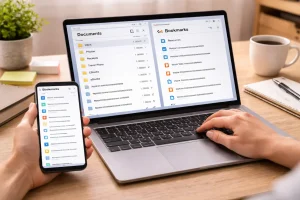
Keeping an email inbox organized can feel like an impossible task, especially with the constant influx of messages, newsletters, work emails, and personal notifications. For many, an overflowing inbox can quickly become overwhelming, creating stress and reducing productivity. But with the right strategies and habits, managing your inbox can be simple, even effortless. In this article, I’ll share my personal approach to keeping my email inbox organized without stress, including practical tips, tools, and techniques that anyone can implement.
Why an Organized Inbox Matters
Before diving into specific strategies, it’s important to understand why maintaining an organized email inbox is valuable. A cluttered inbox can affect productivity, increase stress, and make it difficult to find important information when you need it. Conversely, an organized inbox saves time, improves efficiency, and ensures that you can focus on what truly matters.
With a clean and organized inbox, you can:
- Respond to important messages promptly.
- Avoid missing deadlines or crucial information.
- Reduce digital stress and mental clutter.
- Maintain better control over your personal and professional communications.
Understanding the benefits of inbox organization is the first step toward adopting habits that make email management effortless.
Start With a Clean Slate
The first step in maintaining an organized inbox is starting fresh. If your inbox has thousands of unread or unnecessary emails, it can feel overwhelming. Here’s how I tackle the problem:
Step 1: Declutter Old Emails
I begin by unsubscribing from newsletters and promotional emails I no longer read. Services like Unroll.me or built-in email filters can help automate this process. Next, I go through old emails in bulk, deleting anything that isn’t relevant. Most email platforms allow you to select multiple emails at once, making it easier to clean out months or even years of accumulated messages.
Step 2: Create Folders or Labels
Folders or labels act as a filing system for your emails. I have folders for categories like Work, Personal, Receipts, Projects, and Newsletters. The key is to keep categories broad enough to avoid overcomplicating the system.
Step 3: Archive Instead of Delete
For emails that you might need later but don’t require immediate attention, I use the archive feature. Archiving removes the email from the inbox but keeps it accessible for search. This simple habit prevents the inbox from feeling cluttered while keeping important information just a click away.
Use Filters and Rules to Automate Organization
Automation is a game-changer for inbox management. By setting up filters and rules, you can automatically sort emails into folders or labels, reducing the need for constant manual intervention.
Step 1: Identify Repetitive Emails
Start by noticing patterns in your inbox. Do certain newsletters, promotions, or notifications appear regularly? These are perfect candidates for automation.
Step 2: Set Up Filters
Most email services, including Gmail, Outlook, and Apple Mail, allow you to create rules that automatically move emails to specific folders. For example:
- Emails from your boss can go directly to the Work folder.
- Online shopping receipts can be stored in a Receipts folder.
- Newsletters can go to a newsletter folder or even a separate tab.
Step 3: Use Labels and Tags
Labels and tags are especially beneficial if a single email could belong to multiple categories. For example, a project update from a client can be labeled as both Work and Project A. This makes it easy to find emails later using search.
By using filters and rules, I reduce the mental load of sorting emails manually and ensure my inbox remains uncluttered.
Adopt the “Inbox Zero” Approach
The Inbox Zero approach is about keeping your inbox empty or near-empty by managing emails as soon as they arrive. Here’s how I implement it:
Step 1: Immediate Action
Whenever I open a new email, I ask myself, “Does this require action?” If yes, I either respond immediately (if it takes less than 2 minutes) or schedule a time to respond later.
Step 2: Categorize Emails Quickly
For emails that don’t need immediate action, I either archive, delete, or move them to the relevant folder. This prevents emails from piling up and keeps the inbox manageable.
Step 3: Schedule Inbox Reviews
Instead of constantly checking my email throughout the day, I schedule two or three dedicated times to review messages. This helps me stay focused on work without interruptions and makes it easier to apply Inbox Zero consistently.
By adopting this mindset, email no longer feels overwhelming. It becomes a manageable, structured part of my day rather than a source of stress.
Use Priority Tools and Features
Modern email platforms offer tools that can help prioritize messages and reduce clutter. I rely on these features heavily.
Step 1: Star or Flag Important Emails
I mark critical emails with a star or flag. This ensures they remain visible at the top of my inbox until I take action.
Step 2: Snooze Less Urgent Emails
For emails that require attention later, I use the snooze feature. This temporarily removes the email from my inbox and brings it back at a scheduled time. It’s perfect for newsletters or notifications that I want to read at a convenient moment.
Step 3: Enable Priority Inbox or Focused Inbox
Many email services have priority or focused inbox features that automatically filter important emails to the top while moving less relevant messages to secondary tabs. This reduces distractions and allows me to focus on what truly matters.
By leveraging these built-in tools, managing my inbox becomes much easier and less time-consuming.
Minimize Newsletter and Promotional Emails
One of the main reasons inboxes get cluttered is excessive subscriptions. Here’s how I keep newsletters and promotions under control:
Step 1: Unsubscribe Ruthlessly
I regularly go through newsletters and unsubscribe from those I no longer read. Most emails have an unsubscribe link at the bottom, making this process straightforward.
Step 2: Create a Dedicated Newsletter Folder
For newsletters I want to keep, I create a dedicated folder or label. By doing this, I can review them at my convenience rather than letting them crowd my primary inbox.
Step 3: Use a Separate Email for Subscriptions
Another strategy is to use a secondary email address for subscriptions, online shopping, or promotional content. This keeps my primary inbox reserved for important emails, reducing stress and maintaining focus.
Keep Emails Short and Action-Oriented
Long, cluttered email chains can be overwhelming and difficult to manage. I make it a habit to:
- Respond concisely.
- Break long responses into bullet points.
- Include clear next steps when necessary.
By keeping emails clear and actionable, the entire communication process becomes more efficient. This prevents misunderstandings and reduces the need for back-and-forth messages that clutter the inbox.
Regularly Review and Maintain Your Inbox
Inbox organization isn’t a one-time task; it requires consistent maintenance. I dedicate a few minutes each week to review my folders, clear out old emails, and update filters as needed. Regular upkeep prevents my inbox from becoming overwhelming again.
Step 1: Weekly Cleanup
Every week, I quickly scan through folders like Receipts, Newsletters, and Projects, deleting or archiving emails that are no longer relevant.
Step 2: Reevaluate Filters and Rules
As new types of emails appear, I adjust my filters and rules to ensure automation remains effective. This keeps my system flexible and efficient.
Step 3: Backup Important Emails
For crucial work emails or financial correspondence, I create backups by exporting them or saving them to cloud storage. This ensures that you lose nothing and adds peace of mind.
Tools That Help Keep My Inbox Organized
There are several tools I use to simplify email management and reduce stress:
- Gmail or Outlook—Both have excellent filtering, labeling, and priority inbox features.
- Unroll.me – helps unsubscribe from unwanted newsletters in bulk.
- Sanebox automatically sorts and prioritizes emails based on importance.
- Evernote or Notion – I occasionally save important emails or attachments in these tools for long-term reference.
Using the right tools can make a massive difference in how efficiently you manage your inbox.
The Mental Benefits of an Organized Inbox
Maintaining a clean inbox is not just about efficiency—it also positively impacts mental well-being. A cluttered inbox can cause stress, anxiety, and distraction, while an organized inbox provides the following:
- A sense of control over digital life.
- Reduced cognitive overload.
- Improved focus on important tasks.
- Peace of mind, knowing that nothing is lost or forgotten.
When I see my inbox empty or well-organized at the end of the day, it gives me a small but meaningful boost of satisfaction and confidence.
Conclusion
Keeping an email inbox organized doesn’t have to be stressful or time-consuming. By starting with a clean slate, using filters and rules, adopting Inbox Zero principles, leveraging priority tools, minimizing unnecessary subscriptions, keeping emails concise, and regularly maintaining the system, managing emails becomes a manageable, even enjoyable task.
An organized inbox reduces stress, improves productivity, and allows you to focus on the tasks and communications that matter most. With consistent effort and the right strategies, anyone can achieve an email system that works, rather than one that overwhelms.
FAQ
Q1: How often should I monitor my email to stay organized?
I recommend checking emails two to three times a day rather than constantly. This reduces distractions and helps maintain focus while still keeping the inbox under control.
Q2: What’s the best way to handle a flooded inbox with thousands of emails?
Start with bulk deletion or archiving of old emails, unsubscribe from unnecessary newsletters, and create folders or labels. Use filters to automate future emails to prevent the inbox from becoming overwhelming again.
Q3: How can I ensure I don’t miss important emails?
Use priority inbox features, stars or flags for critical messages, and filters to direct important emails to a specific folder. Snoozing less urgent emails ensures they return to your inbox at the right time.
Q4: Are there tools that can help automate email organization?
Yes, tools like Gmail/Outlook filters, Sanebox, and Unroll. I can automatically sort emails, prioritize important messages, and unsubscribe you from unwanted newsletters, making inbox management effortless.
Q5: Is it better to delete or archive emails?
Archive emails if you might need them later, as this keeps the inbox clean but preserves access. Delete emails that are irrelevant or no longer needed. This combination helps maintain a stress-free inbox.