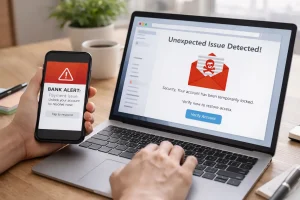
In today’s digital world, almost everything we do involves the internet. From checking emails and banking online to shopping and reading the news, our lives are deeply intertwined with websites. But with this convenience comes risk. Unsafe websites can steal personal information, spread malware, or trick users into scams. I learned this the hard way during my early days of internet exploration, and over time, I developed strategies to identify which websites are safe and which are dangerous. In this article, I’ll share my experience and practical steps that anyone can use to navigate the web safely.
My First Encounter with an Unsafe Website
I remember the first time I fell for a website that wasn’t safe. It looked professional, offered an amazing deal on a software tool, and even had glowing reviews. I didn’t think twice about entering my credit card information. Within hours, I noticed unusual activity on my account. That experience was a wake-up call. From that moment, I realized that appearances can be deceiving online, and trusting a website blindly can have serious consequences. This lesson pushed me to start learning how to distinguish safe sites from risky ones.
Checking the Website URL and Domain
The first thing I learned is to always check the website URL carefully. Safe websites usually have domains that match their official brand name. I avoid websites with strange spellings, extra words, or unusual domain extensions. For example, instead of www.amazon.com, a suspicious site might appear as www-amazon-shop.net. These subtle differences are often signs of phishing attempts.
I also pay attention to the top-level domain. Common trustworthy domains include .com, .org, or .gov. While these don’t guarantee safety, unusual domains like .xyz or .info can sometimes indicate risky websites, especially if the site asks for personal information.
Looking for HTTPS and SSL Certificates
One of the earliest habits I developed was checking for HTTPS in the website address. The “S” in HTTPS stands for “secure,” which means the website encrypts your data. Most browsers display a small padlock icon next to the URL, which indicates the site has a valid SSL certificate.
However, I also learned that HTTPS alone isn’t enough. Some phishing sites now use HTTPS to appear trustworthy. So, while a secure connection is a good first check, it must be combined with other safety measures.
Reading the Privacy Policy and Terms of Service
At first, I used to ignore privacy policies and terms of service. But over time, I realized they are valuable tools. Safe websites usually have clear, easy-to-understand policies explaining how they collect, store, and use your data.
For example, I once visited a website that promised free downloadable software. The privacy policy stated that they would sell my data to third-party advertisers. That was a red flag, and I avoided downloading anything from that site. Checking the privacy policy takes just a few minutes but can save you from serious trouble.
Evaluating Website Design and Content Quality
Over the years, I noticed that many unsafe websites have poor design or sloppy content. Broken links, excessive pop-ups, spelling mistakes, and low-quality images are often indicators that a site is not professionally maintained.
However, some scam sites look polished, so I learned to combine this visual check with other steps. For example, I compare the website’s content with known reliable sources. If a site makes claims that seem exaggerated or unrealistic, I take extra caution.
Checking Website Reputation with Online Tools
One of the most practical steps I adopted was using online tools to verify website safety. Websites like Google Safe Browsing, VirusTotal, and ScamAdvisor allow you to enter a URL and check if it has a history of phishing or malware.
I make this a habit before downloading files or providing any personal information. For instance, when I wanted to download a free stock photo pack from an unfamiliar site, I ran the URL through VirusTotal first. It flagged the site as suspicious, saving me from a potential threat.
Being Cautious with Downloads and Links
Unsafe websites often try to trick you into downloading harmful files. I learned to treat every unexpected download link with caution. I never click on pop-ups offering free software or gifts. Instead, I navigate to the official website of the product or company.
For example, I wanted to install a PDF editor. Instead of downloading from a search result, I went directly to the official website. This habit alone has prevented countless malware infections on my devices.
Paying Attention to User Reviews and Feedback
I also started checking user reviews and feedback before interacting with new websites. Platforms like Trustpilot, Reddit, and even Google Reviews provide insights into other users’ experiences.
Once, a website claimed to offer the latest fitness tracker at a huge discount. Before purchasing, I read multiple reviews and found several reports of scams and delayed deliveries. That was enough to make me walk away. Real experiences from other users often reveal what a website won’t.
Avoiding Suspicious Emails and Pop-Ups
Early in my learning, I noticed a pattern: unsafe websites often reach you through suspicious emails or pop-ups. These messages often create a sense of urgency, such as “Your account will be locked unless you click here.”
I learned never to click links directly from emails. Instead, I manually typed the website’s URL in the browser or used verified apps. This small habit drastically reduced the number of phishing attempts I encountered.
Using Security Software and Browser Extensions
I also started using reliable security software and browser extensions to enhance my safety online. Antivirus programs, malware scanners, and browser add-ons like ad-blockers or anti-phishing tools provide an extra layer of protection.
For example, my browser alerts me if a site is flagged as suspicious, preventing accidental visits. Over time, combining these tools with careful observation has made me confident in identifying unsafe websites before they cause harm.
Practicing Mindful Browsing Habits
Ultimately, identifying safe and unsafe websites is not just about tools—it’s about mindset. I trained myself to browse mindfully, avoid impulsive clicks, and question everything that seems too good to be true.
I also keep my devices updated, regularly change passwords, and enable two-factor authentication where possible. These practices complement my website safety checks and create a secure browsing environment.
Lessons Learned and Key Takeaways
Learning to identify safe and unsafe websites is a process that combines observation, tools, and experience. Here are the key lessons I learned:
- Always verify the website URL and domain.
- Look for HTTPS and the padlock symbol but don’t rely on them alone.
- Read privacy policies to understand data handling.
- Evaluate content quality and design for authenticity.
- Use online safety tools to check website reputation.
- Be cautious with downloads and unexpected links.
- Check user reviews and feedback before interacting.
- Avoid clicking links from suspicious emails or pop-ups.
- Use security software and browser extensions.
- Practice mindful browsing habits consistently.
By following these steps, you can significantly reduce the risk of encountering unsafe websites and protect your personal information online.
FAQs
Q1: Can a website with HTTPS still be unsafe?
Yes, HTTPS ensures encryption but doesn’t guarantee that the website is legitimate. Combine HTTPS checks with other safety measures like URL verification and reputation tools.
Q2: Are all unknown domains unsafe?
Not necessarily. Some new or niche domains can be safe. However, unusual extensions or misspelled domains are often red flags. Always verify the website before sharing personal information.
Q3: How can I verify a website’s reputation quickly?
Use tools like Google Safe Browsing, VirusTotal, and ScamAdvisor. Additionally, reading user reviews on platforms like Trustpilot can provide valuable insights.
Q4: What should I do if I accidentally visit an unsafe website?
Close the website immediately, avoid downloading anything, clear your browser cache, and run a full malware scan on your device.
Q5: Can security software guarantee 100% safety?
No security software can provide complete protection. It works best in combination with cautious browsing habits and awareness of phishing and scam tactics.