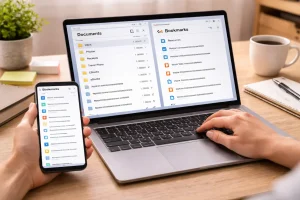
A year ago, my digital life was completely disorganized. My desktop was filled with more than 4,000 files, my Downloads folder looked like a digital landfill, and three different cloud drives contained multiple copies of the same documents. Whenever I needed something important—such as a tax form, project document, or receipt—I had to rely on the search bar and hope I remembered the file name.
Unfortunately, I often didn’t.
Many of my documents had confusing names like “Document_Final_V2_NEW” or “Project_LastEdit_ReallyFinal.” Finding anything quickly was nearly impossible.
In today’s world, where people generate large amounts of digital data every day, poor file organization can significantly reduce productivity. Digital clutter doesn’t just slow down your computer; it also creates unnecessary mental stress.
To solve this problem, I developed a simple system based on logical folder architecture and consistent naming rules. This approach helped me organize thousands of files in a way that makes them easy to find within seconds.
If your desktop, downloads folder, or cloud storage feels overwhelming, the method below can help you regain control of your digital workspace.
Understanding the Philosophy of Logical File Organization
Before moving any files, I realized that the biggest problem wasn’t the number of documents—it was the way I was organizing them.
Most people create folders based on file type, such as
- PDFs
- Images
- Documents
- Videos
At first, this seems logical. However, when you need to locate a file, you usually don’t remember the format—you remember why the file exists.
For example, if you are searching for a travel receipt, you’re thinking about your trip, not whether the document is a PDF or a JPEG.
Because of this realization, I shifted to a context-based system, where files are organized according to their purpose or project.
This simple change makes a digital filing system far more intuitive.
Step 1: Perform a “Grand Sweep” of Your Files
The biggest obstacle to organization in a system with thousands of scattered files is just starting.
Looking at hundreds or thousands of items at once can feel overwhelming.
To simplify the process, I performed what I call a Grand Sweep.
How the Grand Sweep Works
- Create a single folder on your desktop called INBOX.
- Select all loose files from:
-
Desktop
-
Documents folder
-
Downloads folder
-
- Please move everything into the INBOX folder.
At this stage, the goal is not organization but consolidation.
Once everything is in one place, your desktop instantly becomes cleaner and easier to manage. Instead of facing thousands of separate files, you now only have one folder to process gradually.
This small psychological shift makes the task feel manageable.
Step 2: Create Four Core Master Folders
Many people build extremely complicated folder systems with dozens of categories. Over time, those systems become confusing and difficult to maintain.
Instead, I created four simple master folders that cover nearly every type of document.
My main categories are:
01_Personal
Personal records, travel documents, identification scans, and photos.
02_Work
Professional files, active projects, learning materials, and client documents.
03_Fin
Tax returns, receipts, bank statements, and financial records.
04_Archive
Completed projects and older files that are rarely needed but still important to keep.
Why Numbering Helps
Notice that each folder starts with a number.
Using numbers ensures these folders always appear at the top of the file list when sorted alphabetically. This small trick improves navigation and keeps the system consistent across different devices.
Step 3: Use a Simple Nested Folder Structure
After creating the master folders, the next step is designing the structure inside them.
I followed a simple guideline called the Rule of Three.
No file should be more than three folder levels deep.
Example Folder Structure
Level 1:
02_Work
Level 2:
Client_Projects
Level 3:
Website_Launch_2026
Inside the project folder, I created only a few clear subfolders:
- Drafts
- Final_Assets
- Resources
This approach keeps the structure organized without becoming complicated. When folders become too deep, users forget where files are stored.
A shallow structure is easier to navigate.
Step 4: Use Clear and Consistent File Names
Even the best folder structure can fail if files are poorly named.
To avoid confusion, I adopted a Standardized Naming Convention (SNC).
Instead of using spaces or random words, I follow a structured format.
Example
Old file name:
my taxes for last year.pdf
Improved file name:
2025-04-15_Finance_TaxReturn_Final.pdf
Why This Works
This naming format includes three useful elements:
Date First
Using the format YYYY-MM-DD automatically sorts files chronologically.
Context Second
A short description explains what the file contains.
Status: Third
Indicates whether the file is a draft or the final version.
This naming method also works well with cloud storage systems and search tools.
Step 5: Clean Up the Downloads Folder Regularly
The Downloads folder is where many organizational systems fail.
People download files but rarely move them to their proper location afterward. Over time, the folder becomes cluttered and difficult to manage.
To prevent this, I treat the Downloads folder like a temporary inbox.
My Weekly Routine
Every week, I spend a few minutes reviewing downloaded files.
During this quick review, I:
- Delete installation files that are no longer needed
- Move receipts or invoices to the Finance folder
- Store documents in the appropriate project folders
Any files that remain unnecessary are removed.
Regular maintenance prevents clutter from accumulating again.
Step 6: Synchronize Files with Cloud Storage
In 2026, most people work across multiple devices, including desktops, laptops, and smartphones.
Because of this, a file organization system should work seamlessly with cloud storage services.
I configured my four master folders to synchronize with a trusted cloud platform.
This approach provides several benefits:
- Files are accessible from any device
- Data is automatically backed up
- Folder structures remain consistent everywhere
For large archives, I also used selective synchronization. This feature allows older files to remain stored in the cloud while freeing space on my local computer.
Step 7: Maintain Your System with Monthly Reviews
Digital organization is not a one-time project. Like any system, it requires occasional maintenance.
Once a month, I perform a quick review of my folder structure.
During this review, I check for issues such as:
- Folders containing only one file
- Folders containing too many files
- Duplicate documents
If necessary, I merge or reorganize folders to keep the structure efficient.
These small adjustments ensure the system remains easy to use over time.
The Productivity Benefits of Digital Organization
Organizing my digital files had a larger impact than I initially expected.
Beyond simply cleaning up my computer, it improved several aspects of my workflow.
For example:
- I can locate important files within seconds
- My desktop remains uncluttered and easy to navigate
- I feel less stress when saving or retrieving documents
Digital organization also improves collaboration. When files follow consistent naming and folder structures, it becomes much easier to share them with colleagues or clients.
Final Thoughts
Digital clutter is one of the most common productivity challenges in modern work environments.
As our reliance on technology continues to grow, the number of files we create will only increase. Without a clear system, managing this information becomes difficult.
Fortunately, organizing digital files does not require complicated software or advanced technical skills.
By following a few simple principles—logical folders, consistent naming conventions, and regular maintenance—you can build a system that keeps your files organized and easy to access.
If your desktop currently feels overwhelming, start small. Create a single folder and begin sorting your files gradually.
Over time, even a large collection of documents can become a clean and efficient digital workspace.
Frequently Asked Questions
1. What is the best way to organize files on a computer?
The most effective method is organizing files based on context or projects rather than file type. This makes documents easier to locate because they are grouped according to their purpose.
2. How many folders should I have on my computer?
Keeping a small number of top-level folders (around four to six) is recommended. Too many categories can make navigation confusing and harder to maintain.
3. What is the best file naming convention?
A clear naming format such as YYYY-MM-DD_ Description_Status helps files sort automatically and makes them easier to search and identify.
4. How often should I organize my files?
A quick monthly review is usually enough to maintain an organized file system. Regular maintenance prevents clutter from building up again.
5. Is cloud storage necessary for file organization?
Cloud storage is not mandatory, but it offers important benefits such as automatic backups, device synchronization, and easier file sharing.