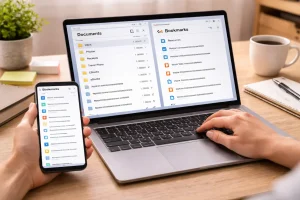
My Downloads folder was a chaotic place for the majority of my digital existence.
Every file I downloaded—software installers, screenshots, PDFs, and random documents—ended up there. Over time, it turned into a 50GB digital graveyard filled with confusing filenames like
- setup_v2.exe
- document(1).pdf
- image-final-final.png
- download.zip
Finding a simple receipt or file became frustrating. My computer slowed down, and the clutter made my digital workspace feel chaotic.
In 2026, we download more files than ever before. The Downloads folder can quickly become unmanageable due to remote work, AI tools, cloud assets, and online documents.
Eventually, I realized that occasional cleaning wasn’t enough. I needed a systematic routine.
So I created a monthly recovery routine. It takes just 30 minutes on the last Sunday of every month, and it has completely transformed how I manage my downloads.
Now my Downloads folder stays clean, swift, and easy to manage.
Here is the exact system I use.
Why the Downloads Folder Becomes a Problem
The Downloads folder is designed to be a temporary storage space, not a permanent archive.
But most people treat it like a storage unit where files sit forever.
Over time, such behavior causes several problems:
- Slower system performance
- Difficulty finding important files
- Duplicate downloads
- Wasted storage space
- Digital clutter that increases stress
Without a system, your Downloads folder slowly becomes one of the messiest areas on your computer.
That’s why a monthly cleanup routine works so well. It prevents small clutter from becoming a massive digital mess.
Phase 1: The “Triage” Method (The 3-Second Rule)
The first step in my routine is quick decision-making.
The biggest mistake people make during cleanup is trying to read every file carefully. That wastes time and leads to procrastination.
Instead, I follow the 3-Second Rule:
If I cannot identify the purpose of a file within three seconds, it gets deleted.
This rule dramatically speeds up the process.
How I Apply the Rule
I open the Downloads folder and sort files by type.
Sorting by file type helps reveal clusters of unnecessary files quickly.
Installers (.exe, .dmg, .msi)
Software installers are some of the biggest storage hogs.
Once a program is installed, the installer file is usually useless.
Unless it’s a rare driver or offline tool, I delete almost all installers.
In 2026, you can always download the latest version from the official website.
ZIP and Compressed Files
If I have already extracted the contents of a ZIP file, the original compressed file is unnecessary.
I delete these immediately.
Temporary Screenshots and Images
Many screenshots are taken for quick messages or temporary tasks.
If they are no longer needed, I delete them without hesitation.
This simple step alone usually removes 30–40% of the clutter.
Phase 2: The Migration Protocol
After removing obvious junk, I move on to the files that actually matter.
The key rule here is simple:
If a file is valuable, it deserves a permanent home.
The Downloads folder is only a temporary hallway, not a filing cabinet.
So I move important files to their proper folders.
The Financial File Migration
I search for financial documents such as:
- invoices
- receipts
- bank statements
- payment confirmations
- utility bills
These files are important for budgeting, taxes, and record keeping.
I move them to a structured folder system like this:
03_Finance → 2026 → Receipts
Before moving them, I rename them clearly.
Example:
2026-03-10_Lesco_Electricity_Bill.pdf
This makes future searching incredibly easy.
The Project File Migration
Next, I handle files related to work or personal projects.
These may include:
- images
- spreadsheets
- presentations
- downloaded templates
- research documents
Instead of leaving them in Downloads, I move them into project folders.
For example:
Work → Client_Project → Assets
or
Personal → Learning → Courses
Organizing files this way ensures they remain easy to locate later.
Phase 3: The “Maybe I’ll Need This” Strategy
Some files don’t clearly belong anywhere.
They might be useful someday, but deleting them feels risky.
This is where many people get stuck.
My solution is the Holding Pen Method.
The Archive Review Folder
I created a folder called:
Archive_Review_2026
If a file survives the first two cleanup phases but doesn’t have a clear home, it goes into this folder.
However, there is one important rule.
The Expiration Rule
If I haven’t opened the Archive Review folder by the next monthly cleanup, everything inside gets deleted.
This rule prevents digital hoarding.
In reality, I rarely need anything stored there.
Most of the time, those files were unnecessary all along.
Phase 4: The Technical Deep Clean
Sometimes your Downloads folder looks empty but still uses significant space.
This happens because of hidden files, cached data, or browser records.
So I finish my routine with a technical cleanup.
Clearing Browser Download History
Even after deleting downloaded files, browsers like Chrome, Firefox, or Safari still keep a download history database.
Over time, this database can become large and slow down your browser.
Once a month, I go into browser settings and clear my download history.
This keeps the browser running smoothly.
Emptying the Recycle Bin
Deleting files does not always free up storage immediately.
When you delete something normally, it moves to the Recycle Bin or Trash folder.
Many people forget to empty it.
After finishing my Downloads cleanup, I always empty the Recycle Bin to free up disk space completely.
Phase 5: Automating the Process
The final step is making sure the Downloads folder doesn’t become messy again.
Automation helps reduce manual work.
Here are two tools that make a big difference.
Windows Storage Sense
If you use Windows, you can enable Storage Sense.
This feature automatically deletes files in the Downloads folder that haven’t been opened in 30 days.
It quietly handles minor clutter throughout the month.
Browser “Save As” Settings
Most browsers automatically save files to Downloads.
But you can change the settings so the browser asks where to save each file.
This simple change dramatically reduces clutter.
Instead of everything going into Downloads, many files go directly to the correct folder.
This reduced my monthly cleanup time from 60 minutes to about 15 minutes.
The Psychological Benefit of Digital Organization
Keeping your Downloads folder clean does more than save storage space.
It improves mental clarity.
A cluttered digital environment can create subtle stress every time you use your computer.
When files are organized:
- work becomes faster
- documents are easier to find
- your computer feels more professional
- productivity increases
Your digital workspace is an extension of your thinking process.
When it’s organized, your workflow becomes smoother.
Start Your Cleanup This Weekend
If your Downloads folder has thousands of files, don’t panic.
You don’t need to fix everything today.
Instead, try this simple strategy:
- Create a folder called Old Downloads
- Move everything there
- Start fresh with a clean Downloads folder
- Follow the Monthly Recovery Routine
Within a few months, your system will become naturally organized.
Remember:
Your Downloads folder should be a hallway, not a storage room.
Files should pass through it quickly on their way to their proper homes.
Once you adopt this mindset, managing digital files becomes far easier.
Frequently Asked Questions
How often should I clean my Downloads folder?
A monthly cleanup is ideal for most people. Cleaning it every 30 days prevents clutter from building up and keeps the process quick and manageable.
Is it safe to delete installer files?
Yes, in most cases. Once software is installed, the installer file is no longer necessary. If you need the program again, you can download the latest version from the official website.
What types of files should stay in the Downloads folder?
Ideally, none should stay there long-term. The Downloads folder should act as temporary storage until files are moved to their proper folders.
How can I organize downloads automatically?
You can use tools like Windows Storage Sense, browser save-location prompts, and cloud storage rules to automatically sort or remove files.
What if my Downloads folder already has thousands of files?
Start fresh by moving everything into an archive folder called “Old Downloads.” Then begin using the monthly cleanup routine going forward.