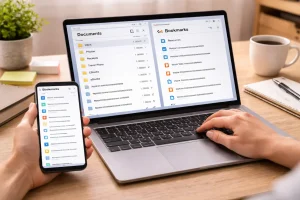
Our smartphones are more than just communication devices—they are our cameras, wallets, notebooks, entertainment hubs, and workstations. Over time, all this functionality can lead to digital clutter: dozens of apps, thousands of photos, unread notifications, and endless files scattered across the device. Digital clutter can slow your phone, cause stress, and make finding essential information unnecessarily difficult.
I’ve developed a routine that keeps my phone organized, responsive, and stress-free. In this article, I’ll share the strategies, habits, and tools I use to prevent digital clutter on my phone, helping you to reclaim control of your device.
Understanding the Impact of Digital Clutter
Before diving into solutions, it’s important to understand why digital clutter matters. A cluttered phone affects more than just aesthetics:
- Slower performance: Excess apps, cached files, and redundant data can reduce your phone’s speed.
- Reduced battery life: Background processes from unnecessary apps drain battery.
- Stress and distraction: Seeing unread notifications or a chaotic home screen increases mental load.
- Difficulty finding files or apps: Clutter may bury important photos, documents, or contacts.
By maintaining a clean and organized phone, I not only improve performance but also create a calmer digital environment that supports productivity.
Step 1: Regularly Audit Apps
Apps are often the biggest source of digital clutter. I start my decluttering routine by auditing all installed apps.
1. Identify Rarely Used Apps
I review each app on my phone and ask, “Have I used this in the past three months?” If the answer is no, it goes into the deletion queue.
2. Delete Redundant Apps
Sometimes multiple apps serve the same purpose—like three note-taking apps or two weather apps. I pick the one I use most and remove the others.
3. Move Non-Essential Apps to Folders
For apps I use occasionally, I group them into labeled folders such as Utilities, Travel, Finance, or Entertainment. This keeps my home screen clean while keeping apps accessible.
4. Use Cloud Alternatives
Many apps store large amounts of data locally. I switch to cloud-based alternatives whenever possible, reducing storage usage and making app management easier.
Step 2: Organize Photos and Videos
Media files are another major contributor to digital clutter. My photo organization routine keeps my gallery clean and searchable.
1. Delete Unnecessary Files
Every few weeks, I go through my camera roll to remove duplicates, blurry shots, or screenshots I no longer need.
2. Use Cloud Storage
I back up all photos and videos to services like Google Photos, iCloud, or Dropbox. This not only secures my memories but also allows me to delete them from my phone, freeing up space.
3. Create Albums and Tags
I organize photos into albums by events, trips, family, work, or projects. Some cloud services allow tagging people or places, making search effortless.
4. Regular Maintenance
Once every month, I do a quick review of new media, deleting what’s unnecessary and organizing new files. This prevents the gallery from becoming overwhelming.
Step 3: Manage Notifications
Unread notifications are a major source of digital stress. I take a proactive approach to manage alerts.
1. Turn Off Non-Essential Notifications
Apps that aren’t urgent—like social media, games, or shopping apps—often generate constant alerts. I disable notifications for these, reducing distractions.
2. Use Focus Modes
Both iOS and Android offer focus or do-not-disturb modes. I schedule these during work hours, sleep, or personal time, ensuring my phone only interrupts me when necessary.
3. Group Notifications
Where possible, I enable grouped notifications. For example, all emails or messages appear as one stack rather than multiple alerts, reducing clutter in the notification panel.
Step 4: Sort Files and Documents
Documents, downloads, and miscellaneous files can quickly accumulate. Here’s how I keep them organized:
1. Use Folders or Cloud Storage
Downloaded files are immediately moved into specific folders: Work, Personal, Receipts, or Projects. If possible, I store documents in the cloud to save local storage.
2. Name Files Clearly
I rename files using descriptive and consistent naming conventions. For example:
2026-04-07_ProjectReport.pdfInvoice_ClientName_March2026.pdf
This ensures I can quickly search and locate documents.
3. Schedule Regular Cleanups
Every two weeks, I go through downloads, old attachments, and temporary files, deleting what’s no longer necessary.
Step 5: Maintain Email and Messaging Organization
Unread messages can contribute to digital clutter. Here’s my approach:
1. Organize Email Folders
I use folders or labels for work, personal items, bills, and subscriptions. Filters automatically sort incoming emails, keeping the main inbox manageable.
2. Archive or Delete Old Messages
Emails that don’t require action are either archived or deleted. This prevents a backlog from building.
3. Manage Messaging Apps
Chat apps can accumulate photos, videos, and files. I periodically clear old messages and media to save storage space.
Step 6: Limit Home Screen Clutter
Your home screen is like the digital entryway to your phone. A cluttered screen increases cognitive load.
1. Keep Essential Apps Only
I place frequently used apps on the first home screen and group all other apps into folders on secondary screens.
2. Use Widgets Wisely
Widgets are helpful for quick access but can contribute to visual clutter if overused. I keep only essential widgets, such as calendar, weather, and task reminders.
3. Maintain a Clean Layout
Consistency in app placement makes navigation intuitive. I avoid random app placement and periodically reorganize folders if needed.
Step 7: Clear Cache and Temporary Files
Cache files help apps load faster but can pile up, consuming storage. I clear cache regularly for apps like browsers, social media, and streaming services.
- On iOS, I delete app data or reinstall apps.
- On Android, I rely on either built-in storage management or cleaning apps.
This not only frees space but also prevents the phone from slowing down.
Step 8: Backup and Synchronize
Backups prevent data loss and reduce the need to hoard files on the phone.
1. Enable Automatic Cloud Backup
I enable auto-backup for photos, contacts, and essential documents. Services like Google Drive, OneDrive, or iCloud handle file storage and sharing seamlessly.
2. Use External Drives for Extra Security
For large files or sensitive data, I maintain an external hard drive backup. This ensures files are safe even if the phone is lost or damaged.
3. Sync Across Devices
Synchronizing files across devices allows me to access data on tablets or computers without cluttering the phone.
Step 9: Adopt Minimalist App Habits
Prevention is better than cleanup. I adopt habits that prevent digital clutter from accumulating in the first place:
- Install apps only when necessary.
- Delete unused apps immediately.
- Avoid saving excessive photos or screenshots.
- Use digital notes instead of screenshots or sticky images.
- Regularly review subscriptions and apps that generate notifications.
These habits make it easier to maintain a clean and efficient phone.
Step 10: Make It a Routine
The key to preventing digital clutter is consistency. I set aside 10–15 minutes weekly to perform a digital cleanup, review apps, organize files, and update folders or albums. Over time, this small effort prevents clutter from ever accumulating.
Conclusion
Preventing digital clutter on your phone is not a one-time task but a consistent habit. By auditing apps, organizing photos and videos, managing notifications, sorting files, maintaining email and messaging apps, keeping the home screen clean, clearing cache, backing up data, adopting minimalist habits, and making cleanup a routine, you can enjoy a fast, organized, and stress-free smartphone experience.
A clutter-free phone reduces stress, improves productivity, and allows you to focus on what truly matters, whether it’s work, personal projects, or staying connected with loved ones. Implementing these strategies ensures that your digital life remains as organized and intentional as your real-life space.
FAQs
Q1: How often should I clean up my phone to prevent clutter?
A weekly review of apps, photos, and files is ideal. Monthly deep cleaning for large files, cached data, and old documents ensures long-term organization.
Q2: Can I prevent clutter without deleting apps or photos?
Yes. Use folders, cloud storage, tags, and automated backups to organize and store files without losing data. Minimalist app habits prevent accumulation while retaining important content.
Q3: How do I manage app notifications effectively?
Disable non-essential notifications, group important ones, and use focus or do-not-disturb modes during work or personal time to reduce distractions.
Q4: Are there apps to help maintain a clutter-free phone?
Yes. Tools like Files by Google, CleanMyPhone, or iOS Storage Management can help organize files, clear the cache, and track storage usage.
Q5: What’s the best way to organize photos long-term?
Use cloud storage with automatic backup, create albums for events or projects, tag people and places, and schedule monthly reviews to delete duplicates or unnecessary media.